
Local visibility
Should Your Service Business Show Its Address on Google?
Decide whether to display your address, configure genuine service areas, and check what customers see before making profile changes.
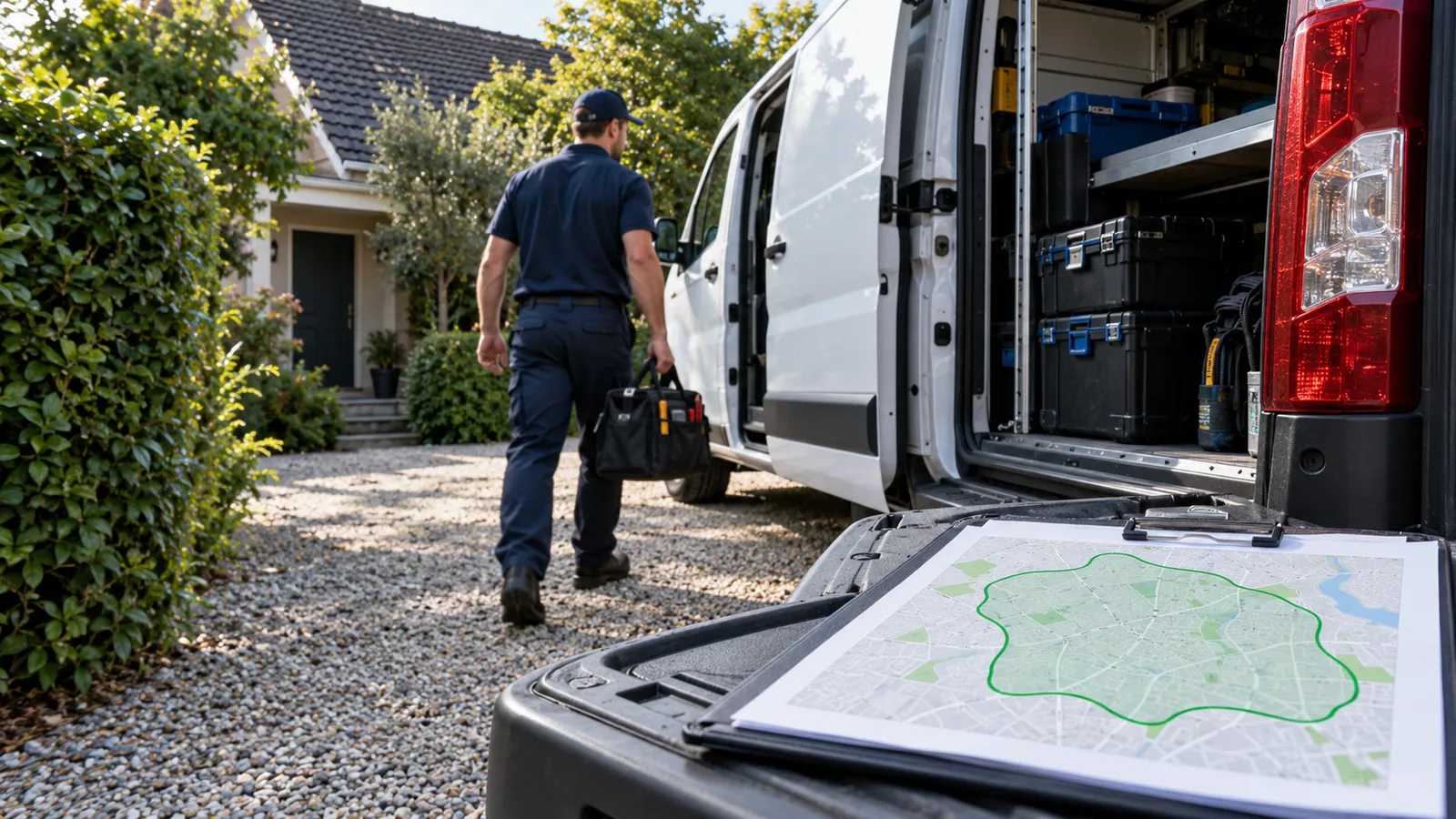
A customer should be able to tell whether to visit your premises or wait for your team to arrive. The address setting on your Google Business Profile communicates that difference. Start with how the business actually serves people, not the map position you want.
Make the operational decision first
Ask your owner or operations manager three questions: Do customers receive service at this address? Is your team available there during the stated customer-facing hours? Does the location meet Google's storefront requirements, including permanent signage? A home office where technicians collect supplies is not automatically a customer-facing branch.
Google distinguishes businesses that travel to customers from storefronts and businesses that do both. A business that does not serve customers at its address should remove that address from public display. A qualifying hybrid business can display an address and service areas. Check the official guidance against your particular operation before editing.
Prepare a coverage list that dispatch can honor
Create an internal list with three columns: area, services available, and practical limitations. For example, a hypothetical plumbing company may handle routine work in three nearby towns but accept emergency calls only in two. The website and office team should explain that difference rather than implying every service is available everywhere.
Do not turn the coverage list into a ranking promise. Selecting a city does not establish a physical branch there or guarantee visibility across it. Keep commercial expansion plans separate from areas you can already serve.
Make and verify the change
1. Save a screenshot of the current public profile and the existing settings. 2. Open the correct profile while signed into an authorized account. 3. Review the location and service-area fields in Edit profile. 4. Remove the publicly displayed address if customers are not served there; enter genuine coverage using the available area selector. 5. Save, record the date, and check whether Google shows the edit as accepted or pending. 6. Recheck Search and Maps after the update is processed, then align the website's contact instructions.
Treat a verification prompt as a separate required step. Do not repeatedly toggle the address to try to bypass it. This workflow improves accuracy; it cannot promise that an edit will avoid verification.
Example: home-based electrical contractor
The owner dispatches electricians from a home office, and homeowners never attend appointments there. The useful public information is the service coverage, contact method, and availability. Publishing the residence would invite visits the business cannot accommodate. The team can keep its operating records accurate while using the appropriate public address setting.
Questions owners ask
### Will hiding an address prevent all local visibility? No such conclusion follows from the setting alone. Eligible service-area businesses can have profiles. Local results depend on multiple factors, including the search location.
### Should I create a profile for every city we serve? Do not treat a service area as a separate business location. Review eligibility before creating any additional profile.
### What should I do today? Have the owner approve one written statement: “Customers are / are not served at this location.” Use that decision to check the profile, contact page, and dispatch script.
Sources and further reading
Continue with this related guide
Reviewed September 5, 2026. Practical examples are illustrative, not client results.