
Photos & content
Google Business Profile Photos: Logo, Cover, and the Photos Customers Add
Google's current photo and video specs, how the logo and cover photo really behave, and what to do about customer photos you would rather not show.
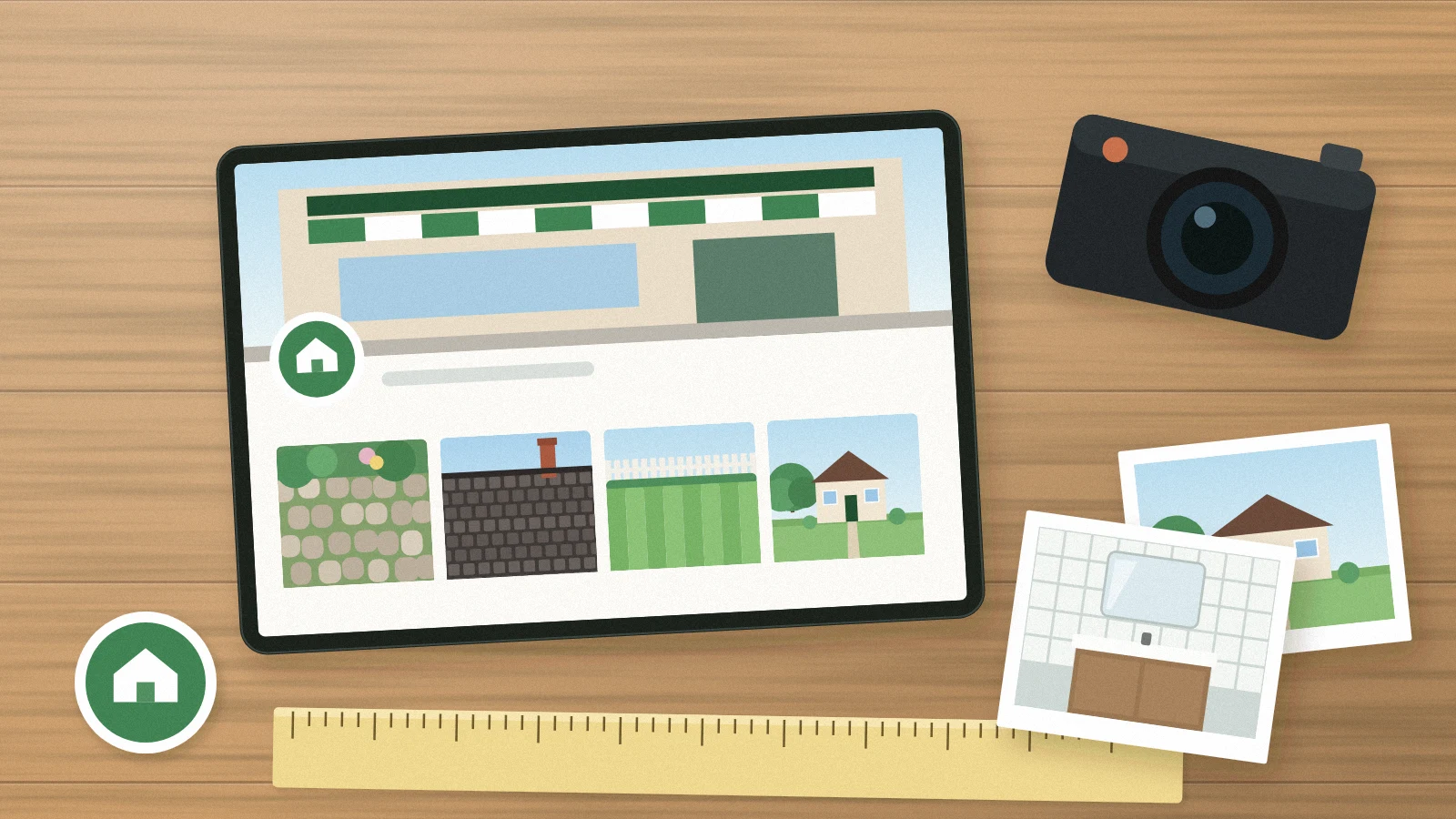
Photos on a Business Profile do two jobs. They help a customer recognize the business, and they show what the work actually looks like. Both jobs fail when the images are blurry, heavily filtered or unrelated to the service. Start with Google's technical requirements, then decide what each slot on the profile should show.
The current specs
Google's help center lists these requirements for profile photos and videos:
- Photos: JPG or PNG, between 10 KB and 5 MB.
- Recommended photo resolution: 720 pixels tall by 720 pixels wide. Minimum: 250 by 250 pixels.
- Videos: up to 30 seconds long, up to 75 MB, at 720p or higher.
- Quality: in focus, well lit, without major edits or heavy filters, and an accurate representation of the business.
Phone cameras exceed the resolution easily; the usual problems are poor light, motion blur and filters. Shoot in daylight when possible and skip beauty filters entirely. Photos and videos appear on the profile only after it is verified. Google's photo guidance.
Logo: recognition, not decoration
Use the same logo that appears on your trucks, uniforms and website, cropped so it reads at small sizes. Google says the logo is highlighted when the profile has basic information, and that if it does not appear you should check that the profile has a name, a valid location with a street address, categories, a phone number and opening hours. Google does not say whether a hidden address counts, so a service-area business should keep the rest of that information complete and check how the profile looks on Search and Maps.
Cover photo: a preference, not a guarantee
Google lets you choose a cover photo, but it says the cover may not always appear first. If it is low quality, or other sources suggest a different image represents the business better, Google may show another photo, including one a customer added. The practical lesson: choose a sharp, honest image of your core service, such as a crew at work, a finished installation or a branded vehicle at a job, and keep adding good photos so the alternatives are good too.
Work photos that help a customer decide
Beyond the logo and cover, add photos of real jobs: the problem, the finished result, the equipment you install and the people who do the work, with the customer's permission and without house numbers, residents' faces or personal documents. A steady stream of truthful work photos is more useful than a one-time photo shoot. For a step-by-step capture routine, see our field-service photo checklist.
Photos customers add
Customers can add photos to your profile. Most are helpful. When one is inappropriate, shows private information or is unrelated to your business, Google's help center explains how to request removal or report it. A photo that is simply unflattering but accurate is unlikely to qualify; the better response is to add stronger photos of your own.
Frequently asked questions
Should we use stock photos?
No. Stock images do not show your work and can mislead customers about what you deliver. Use real photos, even simple ones.
Do more photos mean a better ranking?
Google's tips for improving local presence include adding photos and videos. That does not make photo count a ranking guarantee; quality and relevance matter more than volume.
Can we add text or logos on top of photos?
Keep photos clean. Google asks for images without major edits or heavy filters, and text on top makes a work photo read like an advertisement.
Sources and further reading
Keep exploring
- A field-service photo checklist for Google Business Profile
- A Practical Permission Workflow for Customer Project Photos
- Before-and-After Photos That Stay Honest and Protect Your Customers
Reviewed October 27, 2026. Practical examples are illustrative, not client results.